PixelOS Android 13 Custom Rom For Note 11E Pro 5G (veux/peux)
PixelOS is an AOSP based Custom ROM, with Google apps included and all Pixel goodies. PixelOS aim to provide an experience similar to Google Pixel phones with numerous performance enhancements and a small amount of useful additional features.
In this post I will share PixelOS Android 13 Rom for Redmi Note 11E Pro. You can follow this tutorial for the Note 11 Pro 5G, Note 11 Pro+ 5G, Poco X4 Pro 5G. All these phones has the same codename veux.
PixelOS Features
PixelOS is based on the AOSP project. So, it will include all the features available in the latest Android patch. Additionally, PixelOS is focused to give similar features to Google Pixel Phones.
So, it will also include all the features and updates available in the Google Pixel Devices. (Pixel 6, Pixel 7, etc.) And you will get a improved performance by flashing PixelOS on your Note 11E Pro phone.
Changelogs PixelOS for Note 11E Pro :
- Latest source side updates.
- Improved performance in a way better than before.
- Switched to Google Lens for QR Code (Fixed QS tile).
- Fixed Gamma color shift while playing videos or using the phone.
- OTP messages should be fine.
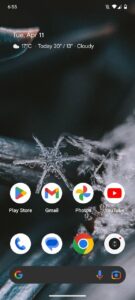
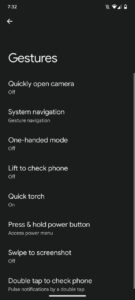
Screenshots
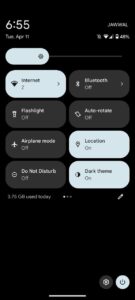
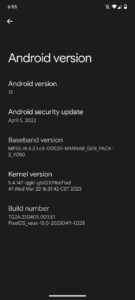
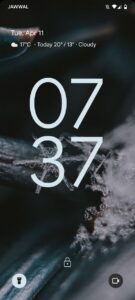
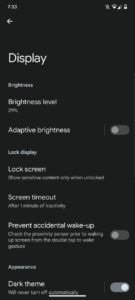
Prerequirement:
Get the platform tools file. Then extract it on your PC. You will get a folder named Platform Tools, open this folder and proceed to the next steps below.
How To Install PixelOS Custom Rom on Redmi Note 11E Pro 5G
Before flashing any custom rom you will need to unlock the bootloader of your Redmi Note 11E Pro 5G phone. If you already unlocked and installed the TWRP Recovery then you can simply flash this rom using TWRP.
Related: TWRP Recovery For Redmi Note 11E Pro 5G (Veux/Peux)
But if you didn’t installed TWRP then follow the below steps to flash this rom properly.
- Get the PixelOS Rom for Note 11E Pro 5G (veux/peux) from this link. (Important: rename the file into PixelOS.zip)
- Get these two files also: Boot img, Vendor boot img.
- Move all these three files to the platform tools folder.
- Now go to the platform tools folder and press Shift + Mouse Right Click at once. You will see option Open Powershell Window here. click on this option.
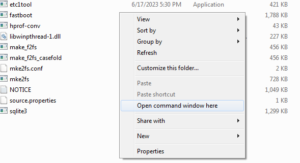
- Then it will open a command box here.
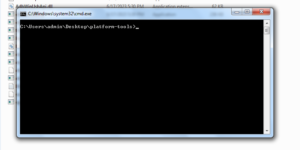
- Then boot your phone into fastboot mode by pressing and holding the Volume down and power button , at once. And connect the phone with your PC using an USB cable. (then give the below commands in the command box)
- fastboot set_active a
- fastboot flash boot_a boot.img
- fastboot flash boot_b boot.img
- fastboot flash vendor_boot_a vendor_boot.img
- fastboot flash vendor_boot_b vendor_boot.img
- Then reboot into recovery mode by pressing and holding the Volume up and power button, at once.
- Then go to Apply Update > Update Using ADB
- adb sideload PixelOS.zip (give command in the command box)
- Factory Reset (Skip If Dirty Flashing)
- Reboot To System
Done. Congratulations you have successfully installed PixelOS custom rom based on Android 13 on your Redmi Note 11E Pro 5G.
The first reboot can take around 5-20 minutes. So, don’t worry just wait and enjoy your new AOSP based Android 13 Rom.
This tutorial is about Redmi Note 11E Pro 5G. You can follow this method to install this Rom on your, Redmi Note 11 Pro 5G, Redmi Note 11 Pro+ 5G, Redmi Note 11E Pro, Poco X4 Pro 5G.
Because all these devices contain the same code name “veux” “peux” and the board is also the same.
That’s all guys. Thank you for visiting my website. If you have problem understanding anything in this post, please let me know in the comments below.
Credits:
- Thanks to @kmosq for providing server.
- Thanks to @ramisky and to @rulim34 for device trees.
- Thanks to @ArianK16a and @GiovanniRN5 for MIUICamera.
- Thanks to @sweatmonster, @TaviTechTutoriais for testing.
- Thanks to @nnippon for building the Rom.