TWRP Recovery For Poco X5 Pro (Redwood)
Poco X5 Pro is a newly released Xiaomi midrange phone with decent performance and a lot features. If you want to want to get more features and advantage from your phone, then you should install the TWRP Recovery in Poco X5 Pro.
In this post, I will share TWRP Custom Recovery for Xiaomi Poco X5 Pro. And also show step by step tutorial on how to install it properly. So, let’s get into the topic.
Prerequirements
Before flashing the TWRP Recovery you need to unlock the bootloader of your Poco X5 Pro phone. After unlocking the bootloader of your Poco X5 Pro phone you can flash your favourite custom rom, custom recovery, or any custom modules you want.
So, make sure to unlock the bootloader before flashing the TWRP Recovery.
After unlocking the bootloader you can flash the TWRP Recovery using fastboot mode. For this you will need a Computer or Laptop.
Screenshots:
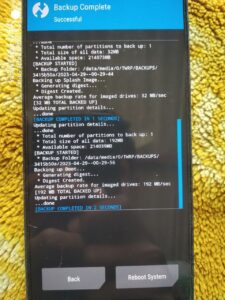
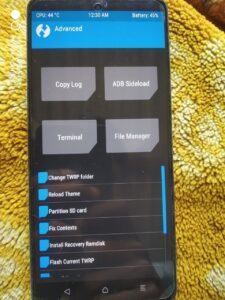
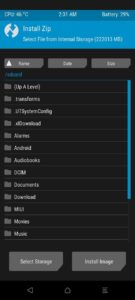
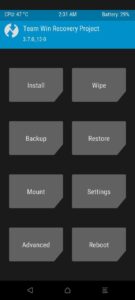
Changelogs:
- Initial android 12/13 build .
- Otg Working fine.
- Touch & Vibration works.
- Fixed Format Data.
- Decryption working fine on MIUI 14.0.1 and Android 13.
How To Install TWRP Recovery in Poco X5 Pro (Redwood)
Now I will show you step by step procedure to flash and install the TWRP Recovery in your Poco X5 Pro.
Don’t miss any step otherwise you can be fail to install the custom recovery.
Note: If you make any mistake you can brick/damage your phone. So, proceed carefully. I suggest you to take help from any skilled person.
- At first get the platform tools from here. Then extract the file on your PC and open the platform tools folder.
- Press the Shift + Mouse Right Button at once. You will see option Open Powershell Window Here, Click on it.
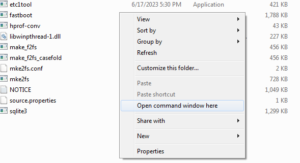
- Then boot your phone into fastboot mode by pressing and holding the Volume down + Power Button at once. And connect the phone with your PC using an USB Cable.
- Then check if the device connected and working properly by using this command: fastboot devices (hit enter button).
- If the device connected, you will see some random letters and numbers.
- Now get the TWRP Recovery from the following link. TWRP Recovery For Poco X5 Pro (Redwood).
- Then move the recovery.img file to the platform tools folder.
- Then go back to the command window and type the below command and hit the enter button.
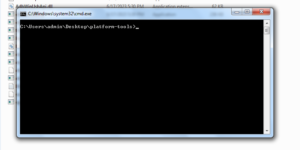
- fastboot flash boot_a recovery.img
- fastboot flash boot_b recovery.img
- After successful flash you can boot into the recovery mode by pressing and holding the Volume up and power button at once.
Note: If you failed to flash Roms using this recovery, then you need then you need to flash recovery in Ramdisk.
How To Install Recovery in Ramdisk
To install recovery in Ramdisk you don’t need an extra recovery. You can simply flash the current recovery using the advance option in the TWRP.
- boot into recovery mode.
- go to Advance
- Select Install Recovery Ramdisk
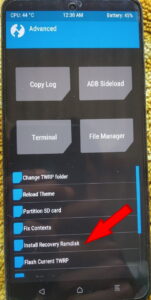
- Then select the recovery.img
- and then swipe right to flash.
That’s it. You have successfully installed TWRP on your Poco X5 Pro and also you have installed the recovery in the Ramdisk.
If you get success flashing any Rom, Magisk, Kernel, etc without Ramdisk error, then no need to install recovery in the Ramdisk.
Compatible Devices
This TWRP Recovery is for Poco X5 Pro. The codename for this device is “Redwood”. But you can use TWRP in the Redmi Note 12 Pro SE (Speed) also. Because Poco X5 Pro and the Redmi Note 12 Pro SE has the same codename “Redwood” and the board is also the same.
I hope that helped you. Now you can install your favourite Custom Rom, Kernels, Magisk modules, etc using this TWRP Recovery. Thanks for reading my post. If you face any problem during the installation process please comment below.
Credits:
- Thanks to dkpost fo the base.
- Thanks to @DevilNoobIN for making the TWRP for Poco X5 Pro and Note 12 Pro SE